Something is wrong!
ActiveX controls are not available in your browser. The TSR Wizard is only supported in Internet Explorer.
Click here to disable the TSR Wizard and make this message go away »
Something is wrong!
The wizard is enabled but it was not found. It may not be installed.
chrissy6930 / Downloads / Sims 2 / Sets / Objects
Back to Previous Page
Submit your creations!
Share your work freely
with all our users.
Files not working?
Try the download guides
in our helpcenter.
Who made the tools?
Meet those who made
custom content a reality.
Read our rules!
Before recoloring or using
content in lot creations.
ItemID: 253953 | Revision: 1
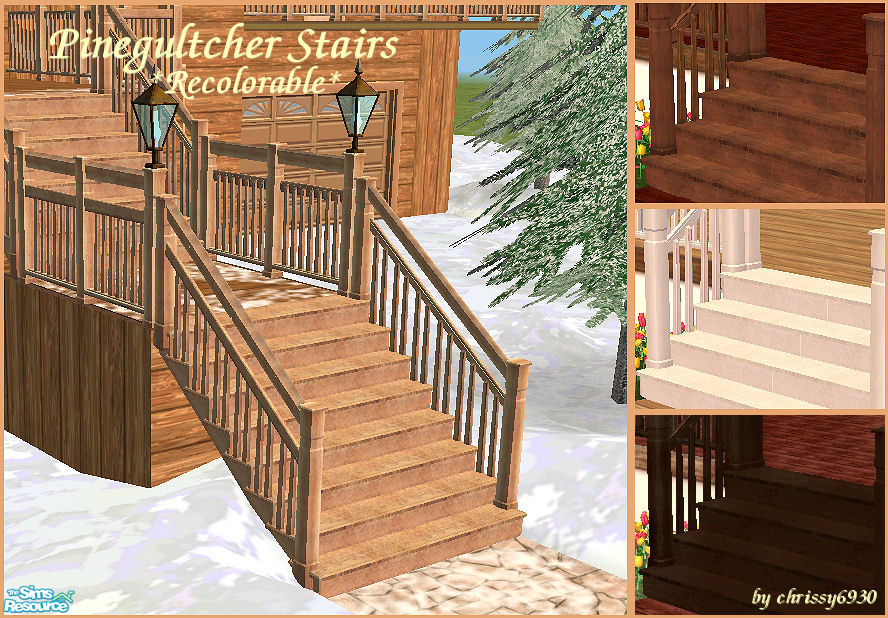
• Pinegultcher Stairs *Recolorable*
This set has 8 items, view them » | 21 comments »By chrissy6930 | Jan 24, 2006
TSRAA: Yes
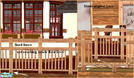
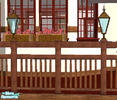
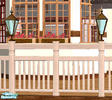
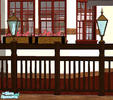
Recolorable Modular Stairs designed to match the ingame Pinegultcher fences. IMPORTANT: please read the INSTALLATION and APPLICATION INSTRUCTIONS with each item. Background are Pinecats 'Winter Woodland 2' and 'Bennington' redecorated, with permission.
Installation Instructions:
Installation instructions for my Pinegultcher Stairs *Recolorable*:
you will need to amend the script file of the modular stairs in order for the mesh to show up in your game:
path: C:/Program Files/EA GAMES/The Sims2/TSData/Res/Catalog/Scripts/modularstairs.txt
copy and paste all of the following blocks at the very bottom of the text:
# chrissy6930_pinegultcherstairs
modularStairs 709
objectID landing 0x69696980
objectID placeholder 0x6969697F
objectID step 0x6969697D
objectID topStep 0x69696981
objectID bottomStep 0x6969697E
catalogTextIndex 101
DO NOT OVERWRITE ANYTHING !
Now drop my mesh and any of the recolors you may like into your downloads folder (my docs/EA GAMES/The Sims2/Downloads)
In your game you will now find a new thumb in the modular stairs catalog. The description will be blank and the price set to zero. This is because the catalogTextIndex - which holds the catalog description and the price of modular stairs - when set to a non-Maxis figure is not customizable as of yet.
Application instructions for recolors:
Place the stairs from the catalog – in the default color – on your lot. Add the railings if you want them now as the stairs once recolored will revert back to their default color if you place the railings later on. But this is only temporarily as saving your lot, exiting and reentering will show the stairs in your chosen color again.
Now choose the ‘design tool’. Moving your mouse over the stairs now will highlight single steps. Click on one step and a new window will pop up with all installed color options showing up. You will need to recolor each step separately though…
Hint for recolor artists:
You can create recolors of my stairs using the same method as with any other meshes: open object workshop in SimPE and browse for the respective mesh. Now proceed as usual…


21 Comment(s)
Note: We do our best to make sure the comments posted are of non-offensive material and on-topic. If you see something that is irrelevant or abusive, please report it and we will remove it as soon as possible.
Add a Comment
Warning: Use of bad language, unsuitable links or flaming will result in deletion of your account - regardless of your membership status. Please note that comments must be suitable for our PG13 audience. Your IP address is logged and abuse of this service will result in a ban and evidence sent to your ISP.