

 Sign In


TSR Academy – 20 Things You Should Know About The Sims 4

If you are new to playing the Sims 4 or want to try it, the Sims 4 base game is free. There are loads of packs and mods to extend your gameplay, but why not try it before you decide if you want to dive into the pool. To make your Simming adventures more enjoyable, here are twenty basic things you should know about the game.

LOT Featured from Fairy Tale Lot Tours Blog
Learning Curve
A common element of many simulation games is the steep learning curves they present to new players. The Sims 4 is not necessarily problematic, especially with cheats. However, it does offer some oddities and challenges that new may find incredibly tricky or confusing as a new simmer. Don’t let this discourage you, as once you get a handle on the verbiage and patterns, it is relatively easy, aside from a couple of things like roofs…
General Tips
 CC IS listed in THE Get that look homecoming blog
1 – How To Play
The one selling point that has kept me invested in The Sims franchise is that there is no one way to play the game. There are loads of ways to play the Sims. You can create Sims, build houses, decorate, play challenges, or go through the game. Really, it is up to you how you play this simulation, and you can change your mind anytime.
2 – Saving The Game
With any game, there is progress throughout. You always want to make sure that you are saving your game regularly! The most frustrating thing that can happen in gaming is losing your progress! You do not want that to happen, so make sure you hit save by going to the three dots at the top and then save the game. I have had the unfortunate mishap of losing HOURS of game progress or full Sims because I forgot to keep the game!
3 – Short Cuts
There are many controls and options within The Sims 4. One thing that helps many Simmers is using shortcut commands on their keyboard to make the gameplay and design more fluid. For many players, it is easier to remember a shortcut command rather than look at one of the many toolbars within the game, especially when building lots. We do have a blog on building shortcuts that you can find HERE.
Create A Sim

4 – CAS = Create A Sim
Terminology is important when you are learning a new game. CAS means Create A Sim and is the part of the game where you ‘design’ your Sim. Some players spend their entire time just creating Sims. I know I can spend HOURS just in CAS. We also have a Simiology Blog, which can help you with many terms specific to The Sims 4 game that you can read HERE.
5 – Use Filters
One of the fastest ways to find outfits in your CAS is to use filters! If you are anything like me, you download a lot of CC and have so much that it is difficult to find that ONEEEE piece that you downloaded for a specific Sim… But you have so much, you just don’t know where it is! Well, you can use filters to filter out no CC items and by color, and so forth, to narrow your search down. I do have a blog on CAS Filters, so you can read more about how to use filters HERE.
6 – Sliders & Adjustments
There are a couple of ways genetics are adjusted within The Sims 4 CAS: sliders, altering the element with your mouse, or just a basic click. For example, you can click a body style to add to your sim or adjust it manually. You can use sliders to change the Sim’s body style and use your mouse to modify specific elements a bit finer. You can also adjust facial features by using your mouse to move things around and make them as you want.
7 – Swatches
Most CAS items in both content CC and base game types have different swatches that you can select from. These swatches could just be the color of the outfit, or they could be other patterns. When you click on the item, small boxes appear that you can select from to change the outfit’s look.
Building

Lot featured in the Haunted Houses Lot Tours Blog
8 – Build/Buy
One other phrase you will see in the community and within content about The Sims 4 is “build/Buy.” Build/Buy refers to the part of the game where you build lots or decorate rooms. This game section has toolbars and shortcuts, just like everything else.
9 – Changing Your Lot Type
When you are in the build/buy section of the game, there will be a little house in the top left corner of your screen. If you click that, you can change your lot type. The amount of content you have outside the base game will determine how many options you have to select from, but this is how you would build different lot types.
10 – Roofs
Roofs are hard. LOL, Practice, Practice, Practice! There are many functions for sizing and cropping, all within placing a roof. It takes lots of trial and error—lots of mistakes, LOL. Just be patient and try different things! For more help on building, check out Paige’s Book of Building series HERE.
11 – Eyedropper Tool
For me, the building was a struggle bus. However, one tool changed all that for me: the Eyedropper Tool. This tool clones whatever item, wall, floor, etc., you click on in Build/Buy. This makes it easy to fix mistakes, change swatches and colors, and finish off landscapes. You see the point, endless options. This handy dandy tool is located on the toolbar at the top center of your screen in Build/Buy mode. You will see it as it is towards the left center of the main toolbar, which is, in fact, an icon of an eyedropper.
Playing the Game
12 – Death
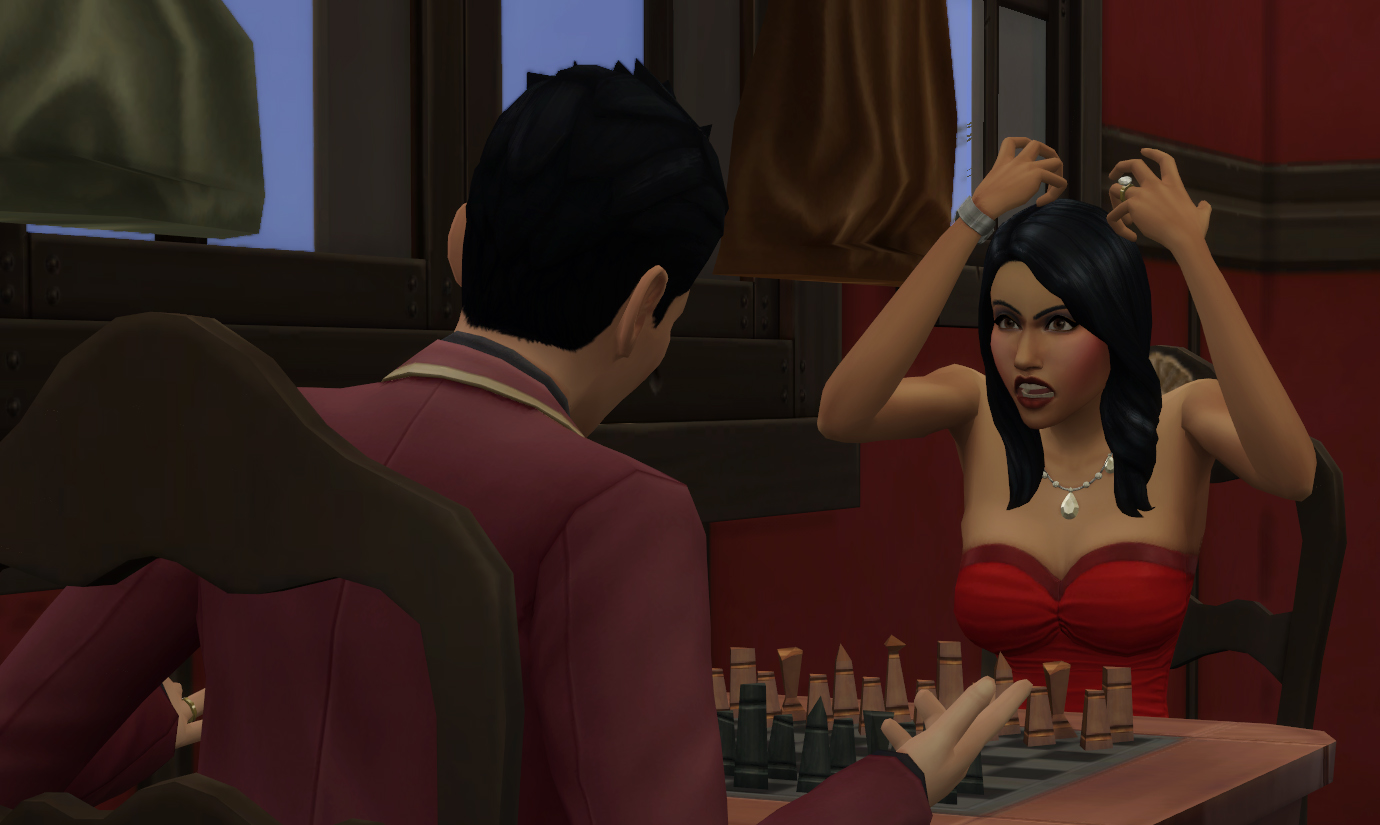
There are so many deaths in this game. Where do we begin? Well, of course, with Grim. Yes, if you do not care for your Sims or something random happens, like they eat rotten puffer fish… your Sims can die, and the reaper will come for them. I have cataloged a few ways to die in this blog about Sim Death HERE. Simmers gets joy from trying all the deaths for some reason.
13 – Game Over
If, if ALL your teen and older Sims die in a household, it is game over. You will be presented with a choice to save your progress or exit to the main menu. If you go to the main menu, the game will not save since your last save, so your Sims may have hope unless… this is what you wanted.
14 – Emily
Oh… Emily… yes, just think of her as your tutorial. If you need her, you can use her, and you will receive helpful information. However, I find her annoying and turn her OFF! LOL
15 – MOTHERLODE
Ah, cheats… what simulation game would be complete without them? Motherlode is the fastest way to get simoleons (the currency in The Sims games). Yes, that is right, give your Sims all the funds they will ever need… or make them earn it… You decide it all! You can read all about cheating in our Cheat blog HERE.
16 – Townies
If you hear the term townies, this is the Sims created by EA already in the game. They are relatively unique and have a variety of jobs. Playing with your townies is an excellent way to acclimate to the game. Of course, if you don’t want them, you can delete them… And let me warn you, your townies can get a little strange… Want to know more? Read this blog HERE.
17 – Needs
Like all of real life, your Sims have basic needs that must be met. These needs include things like hygiene, food, and socialization. The bars will range from green to red, green being fuller and red being emptier. If your hygiene bar is red, your Sim will smell to other Sims and get a moodlet (debuff/buff system) that alters moods and social situations. Of course, if your Sim is starving because their food is low, they will eventually die.
Custom Content

18 – Where Does Your CC GO
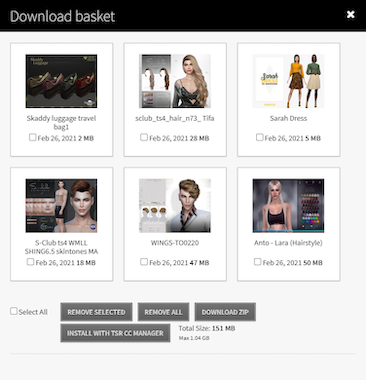
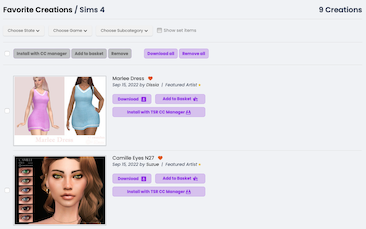
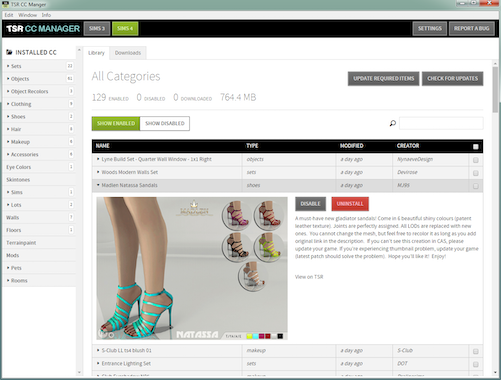
For your CC to work, it needs to go to your Mods folder. This is generally C:\Documents\Electronic Arts\The Sims 4\Mods. Unless you have it set to go somewhere else, like I have multiple drives, mine is set up differently. If your files are not installed correctly, they will not appear in your game. If you are a VIP, you can use the CC Manager to install all your downloaded CC from The Sims Resource, and you can read more about that HERE.
19 – What CC Looks Like In-Game
Any CC you download for your game installed correctly will have a little wrench on the icon. This is how you know it is installed correctly and in your game. If you download too much CC, check out this blog, How to Manage Too Much CC – HERE. Too much CC should NEVER be a problem! 😀 Really… it depends on your machine as to how much it can take. (I just upgraded, so I went through my download history and downloaded it ALL again!!!)
20 – Enabling CC
You will also have to allow the game to run CC, which you can do through your settings. You must press ESC and go to Game Options, then Other. On the Other settings panel, you check the box that says Enable custom content and mods. If you have any script mods, you will need to enable them. Once you have done this, restart your game for the CC to take effect. Check out this blog HERE on How To Use CC.
Summary
So, in conclusion, if you are new to this game, you can see now there are many options for how you play it. There is also no wrong way to play this game. If you want to build and decorate, do it. If you wish to make Sims and style outfits, go for it… or you can play the gameplay.

There are also many ways to spice things up a bit with challenges, and you can read about them on the Top Ten Sim Challenges HERE. We have so many tutorials and information here, but this might be a bit much; if you are looking for something not mentioned here, just search on our blog page HERE. I hope this blog helps you on your Simming adventures! Happy Simming!
Keep up with more Sims stuff and what I’m up to at @TSR Jezi.









 Limited Time Offer
 For a limited time only, we’re giving away a free


