

 Sign In


DDS Files for plant meshing with TSR Workshop
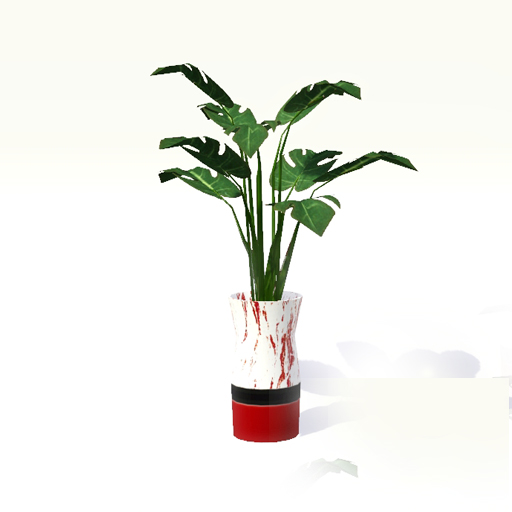
Want to make plants in The Sims 3, and those DDS files for plant meshing are confusing the heck out of you? Then this tutorial is for you!
This tutorial will not teach you to mesh, only the how to of the DDS files for creating a plant.
This Tutorial assumes that you already know how to export, mesh, UV Map and re-import into TSR Workshop. It also assumes that your have a working knowledge of terms for Adobe CS2 or higher. We will be working with “Sculpture Vase Contemporary.”
Programs we will be using:
- TSR Workshop
- Adobe CS2 or higher
- DDS Plugins for Adobe
BlackGarden’s Tutorial will also be very useful if you don’t know about Adobe’s pen tool:
Extracting Sims and Objects from Screenshots
Step 1
You should have already meshed your plant and have your UV map handy. Make sure your map is the size of the DDS files from workshop for this tutorial. The size of the DDS we will be using is 256 X 256. Then import your meshes to WS. Delete all Variation Files by choosing them and in turn hitting the red X until you only have one file.

Step 2
These are our DDS files we will be working with. We will not be exporting the mask for this tutorial, we won’t need it.
In turn export Overlay, Multiplier, and Specular naming them and placing them in a file you can find easily.
Open Adobe CS2 or higher. Drag, in turn, your Overlay, Multiplier, and Specular into Adobe.

Step 3
Now you will make a blank 256 X 256 file to work with. Not necessary but an easier way to make your files. Make it black.
I’m going to take my UV map and place it on the blank file Like so:

Step 4
Now we will position our plant and other non-recolorable images on the map.

Step 5
Now delete the UV map, flatten the image, and you should have this:

Step 6
Now we have our working “Model” for the rest of our DDS files.
Now we’ll work on our Overlay First.
Copy this “Model” to your overlay file. Ctrl A, ctrl C this file and then ctrl V to the overlay. Your overlay now has its base.
Ah, but your overlay needs a new alpha file. So back to your “Model.” Duplicate the main layer of the model file. Using your wand tool you will select all black parts on the duplicate layer and right click select inverse. Using your pencil at the highest setting and making sure your main color swatch is white click on your selected image. You should have something that looks like this:

Step 7
Now we want to Ctrl+A and Ctrl+C to copy this layer to our Overlay Alpha. So let’s do that now, Ctrl+V to paste, and you should have an alpha layer for your overlay that looks like this:

Step 8
Flatten layer and save as a DXT5 ARGB 8 bpp | interpolated alpha. Overlay is now done.
ONWARD! Now would be the time to grab a cup of coffee or a soda, so I’ll wait for a minute.
Okay, minute over. Now we will work on the Multiplier.
The first thing we want to do is go back to our “Model”. Make sure you deleted the Alpha File we made for our overlay. You should now be back to this for your “Model”:

Step 9
Now we want to make a multiplier file. So again duplicate your “Model” layer. Now go to Image/Adjustments/Desaturate. Now your “Model” should have a layer that looks like this:

Step 10
As before you will copy this layer and paste it over the multiplier file. Now we get into the tricky parts. Yes, what makes you think it can’t get any more complicated? Hmmmm?
Take your UV map and place it on top of both the Multiplier layer then reduce visibility to 35%. You should have something that looks like this:

Step 11
Now see how we still have the pot to do? Well we are going to hand draw around the pot with a grey layer. So make a 256 X 256 Grey layer to work with and save it. Now place that saved layer over this multiplier and reduce visibility to 45% so you can see the UV map underneath.
Rastersize the layer in case you didn’t know you had to do that. Right Click on the layer, Rastersize. You should now have this:

Step 12
Now we will cut around the pot using our pen tool. If you don’t know how to do this I suggest you read BlackGarden’s Tutorial first found here: Extracting Sims and Objects from Screenshots.
Now we will delete the extra layer and the UV map, then flatten so that we are left with this:

Step 13
Now we Could get into all the technical stuffs about shading in your multiplier because the pot part does need some shading, but that is not the purpose of this tutorial. So we won’t.
So onward, now we need an alpha layer for the multiplier. Yes, the plants Multiplier has an alpha layer. So now we will go back to our “Model.” Select the black parts with your wand tool and then select inverse so that your parts are selected. Going to your pencil tool again, we want to make white the parts to the plant, ending up with something that looks like this again:

Step 14
Now place our UV map over top of this file. Reduce visibility to 35% so you can see underneath the UV map. Now comes the most important part of making our leaf totally invisible around the leaf in game. You are going to trace your UV map around the entire leaf surface of the mesh part with your pen tool (again referring to BlackGardens Tutorial). Like this:

Step 15
Notice how I drew a little bit larger than my mesh map. Now we will layer via cut just that section. Delete the UV map and place a white background layer underneath the cut out. Flatten and it should look like this:

Step 16
Now you will copy and paste this to the alpha layer of the Multiplier and your channel should look like this:

Step 17
Now save to DXT5 ARGB 8 bpp | interpolated alpha. Your Multiplier is now done.
Take a break, Walk around and clear your head, the hard parts are now done. We have one more thing left to do: the Specular.
We’re going to go back to our “Model” mesh and clear off all the editing we have done thus far. So Edit/Step backwards until you get back to where our “Model” looks like this:

Step 18
Now we want to copy this to our Specular file and then place our UV map on top with a 35% visibility so we can see below. Cut out Place a white layer under your UV map and cut out your planter part like this again using the pen tool:

Step 19
Add a totally black alpha layer and then save as a DXT5 ARGB 8 bpp | interpolated alpha. Now we are ready for import back into Workshop.
So in turn import each file into Workshop, Overlay, Multiplier, and Specular. Your plant should look something like this:

Now you know how to make plant meshes!









 Limited Time Offer
 For a limited time only, we’re giving away a free


